Clean up old screenshots on your iPhone
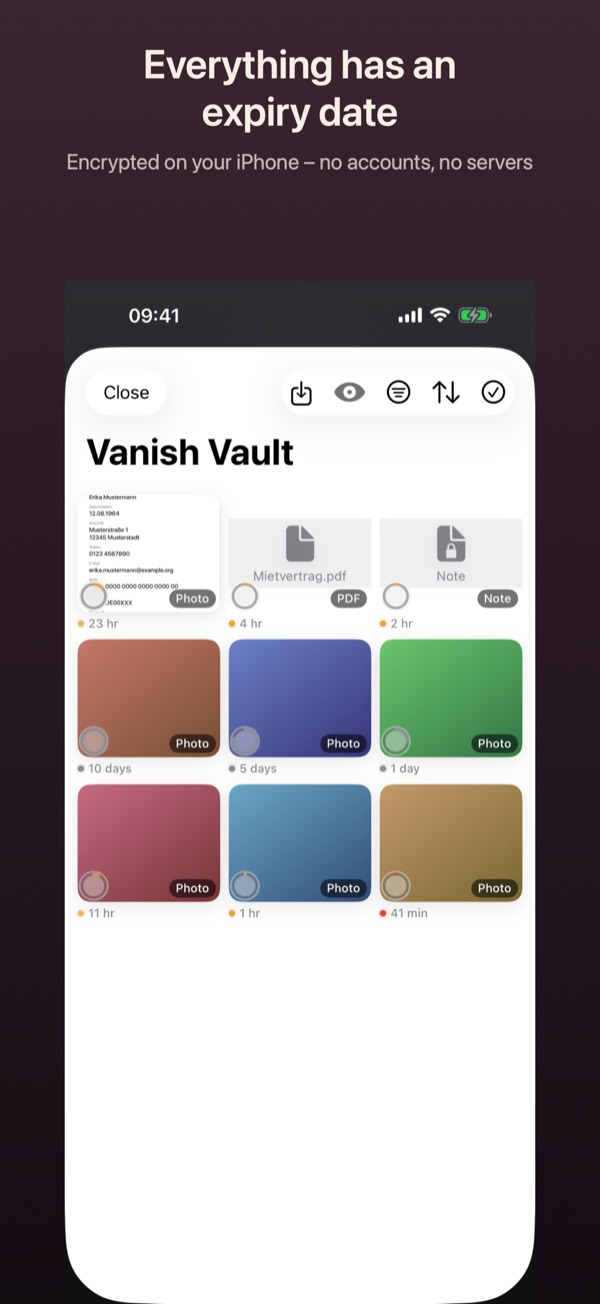
Vanish finds screenshots and images with codes in your photo library, moves them into its vault with an expiry date, and lets iOS delete the originals. The search runs only on your iPhone.
How it works
- Open Settings (the gear at the top right of the camera), then Cleanup and Clean up now. At first, the vault also shows a New: Cleanup card.
- The first time, Vanish explains why it needs your photos. Tap Continue and allow access to all photos in the iOS prompt.
- Vanish shows the images you probably only needed briefly. Tap one to leave it out, or go through them with Review one by one.
- Choose at the bottom when the images expire in Vanish: 1 hour or 24 hours, or 7 days with Pro.
- Tap the big button at the bottom, for example “All 12 into Vanish · gone in 24 hrs”. iOS then asks on its own whether the originals may be deleted. They only leave your library once you confirm.
- Finally, Vanish asks whether to remind you once a week. You can change that any time under Settings › Cleanup › Weekly reminder, with day and time.
Good to know
- Free for everyone. Only the 7-day expiry needs Pro.
- Vanish needs access to all photos. With “Selected Photos” it finds nothing.
- Deleted originals stay in “Recently Deleted” in the Photos app for 30 days.
- Delete now removes images from your library without putting them into Vanish.
- The reminder comes at most once a week. If you don’t open Vanish for a while, it stops after three reminders.